HereALL helps you run fast attendance checks during trips, events, or classes — without manual counting.
The app uses two roles: Leader (organizer) and Member (participant).
⚡ Quick start (solo demo in 60 seconds)
Trying HereALL alone? Use this quick solo demo to see how it works:
- Leader: create a group.
- Leader: start a session (tap Start).
- Switch role: go back to the role selection screen by pressing the back button 3 times.
- Member: select Member, enter your name, and join using the same group name you created.
- Member: tap the big check-in button ✅.
- Switch back: go back to the Leader screen — it will open the session automatically. You will now see your check-in and the distance information.
Tip: The fastest way to understand the app is to try this “solo demo” once — then it will be obvious how it works with a real group.
1 Create or join a group
👑 If you are a Leader
- Create a group in two ways:
- Manual — you type a group name (it must be unique and not already used).
- Generated — the system generates a unique group name for you.
- Important: members must join using the same group name. Tell them the name, or use the share button next to the group name to send it to the group.
🙋 If you are a Member
- Join a group by entering the group name and your display name.
- Tip: You usually need to do this only once — the app can remember your last group.
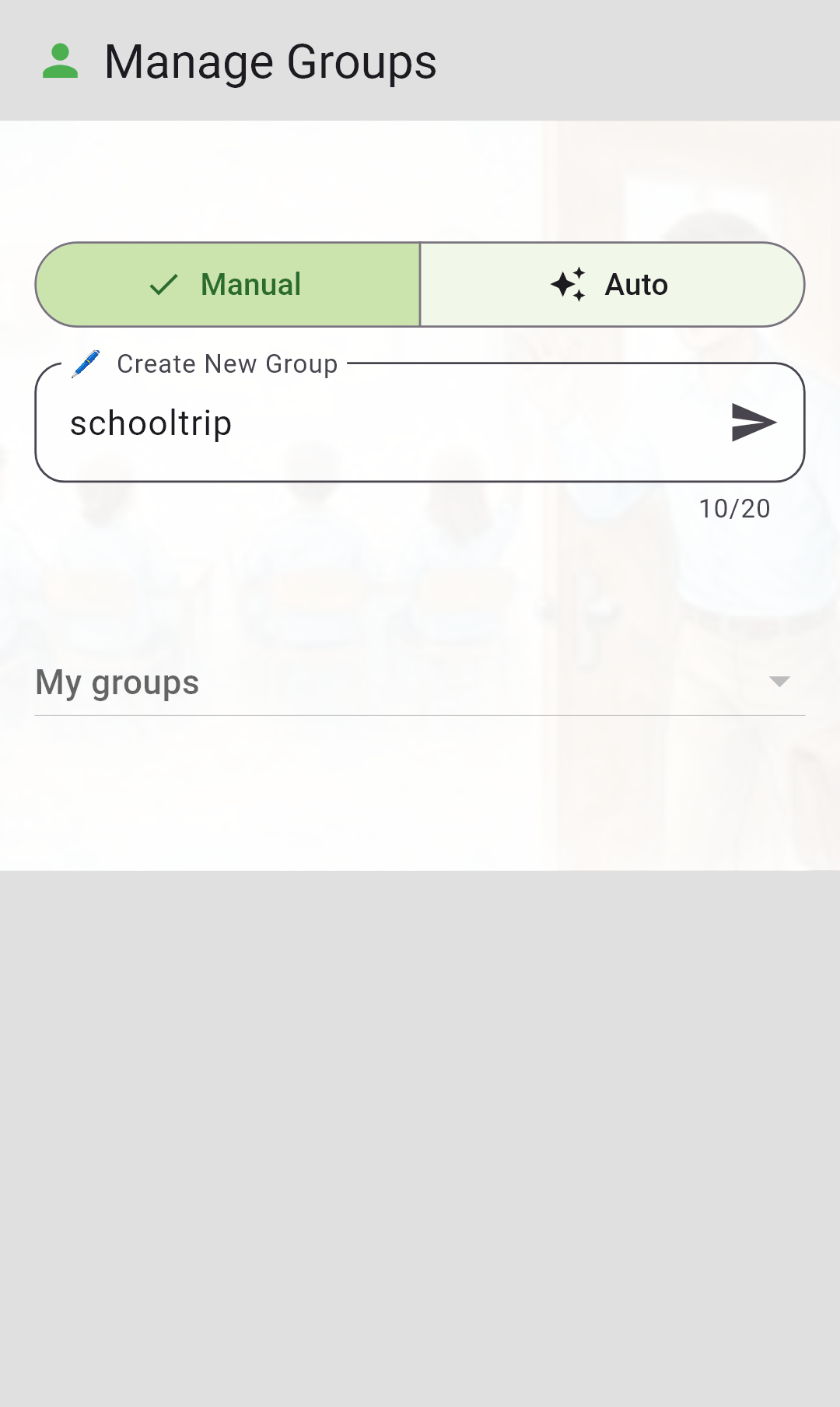
👑 Create group
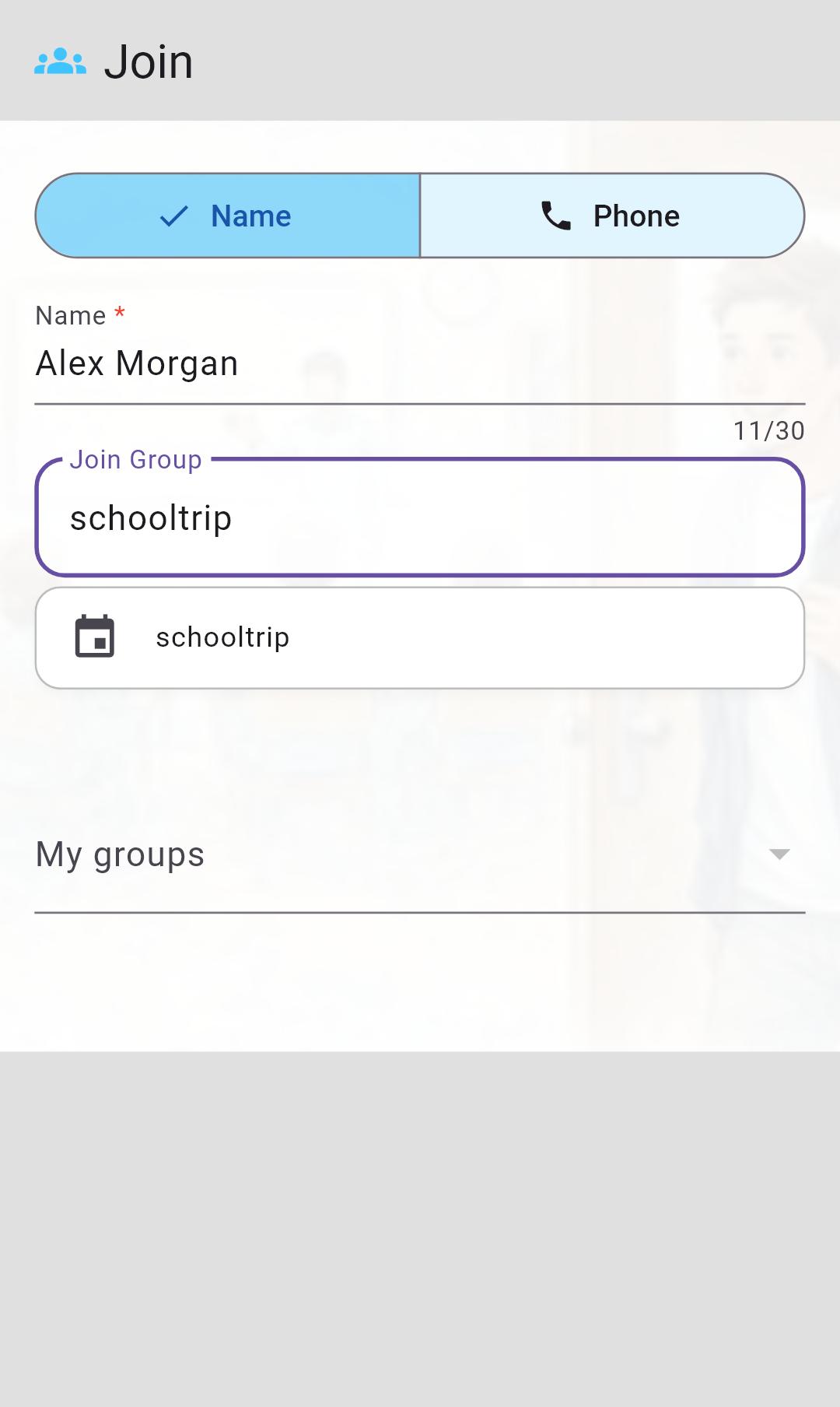
🙋 Join group
2 Start a session (Leader)
- When you want to count the group, start (or restart) a session.
- You can optionally send a short message to everyone at session start.
- Meeting point: at session start, the leader shares their current location as the meeting point. Members can see where the session started (and the start time), so everyone knows where to return.
- A small location icon on the button indicates whether GPS signal is available at the moment of starting/restarting.
Then you can say: “Phones out, check in now!”
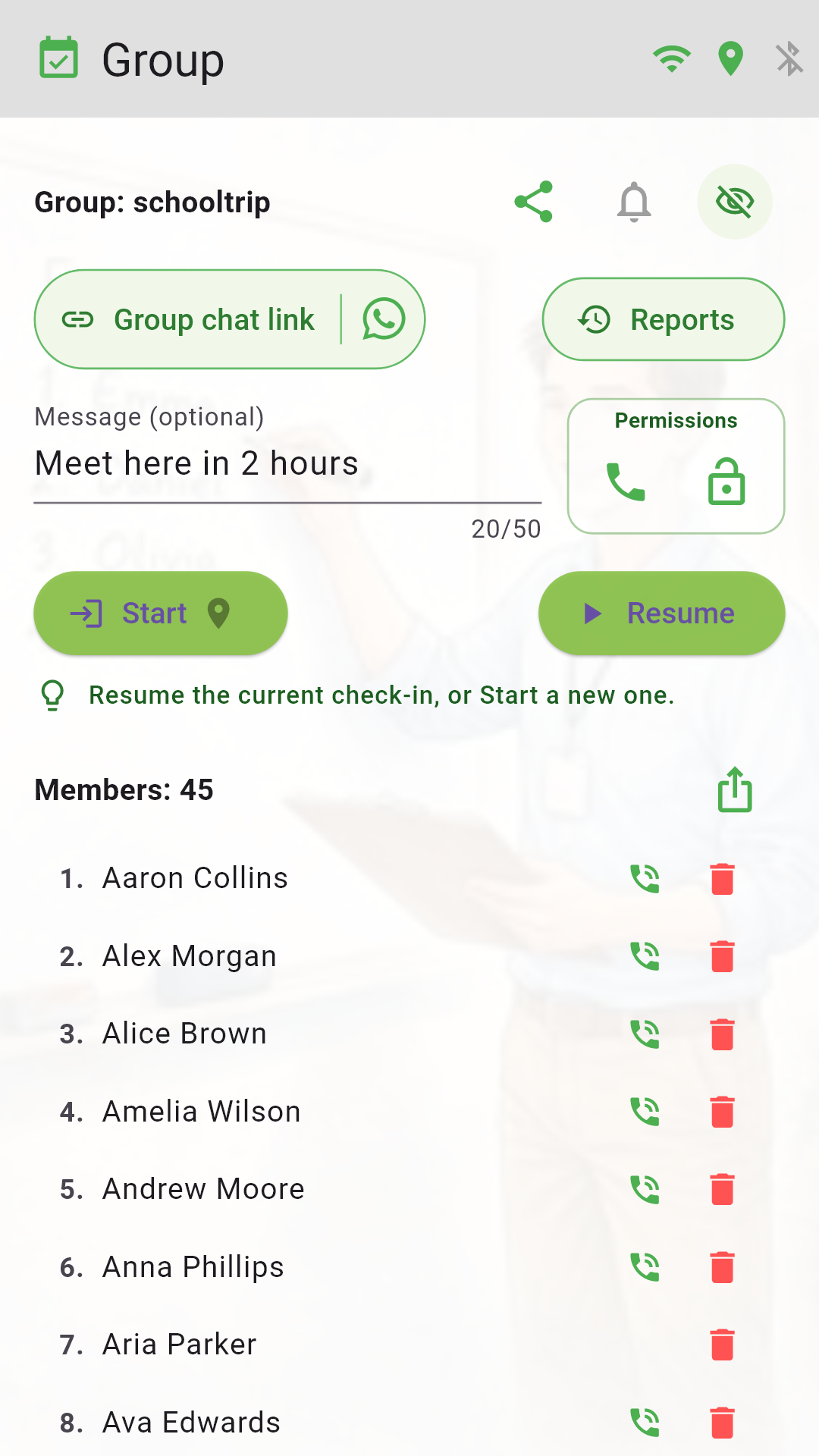
▶️ Start session
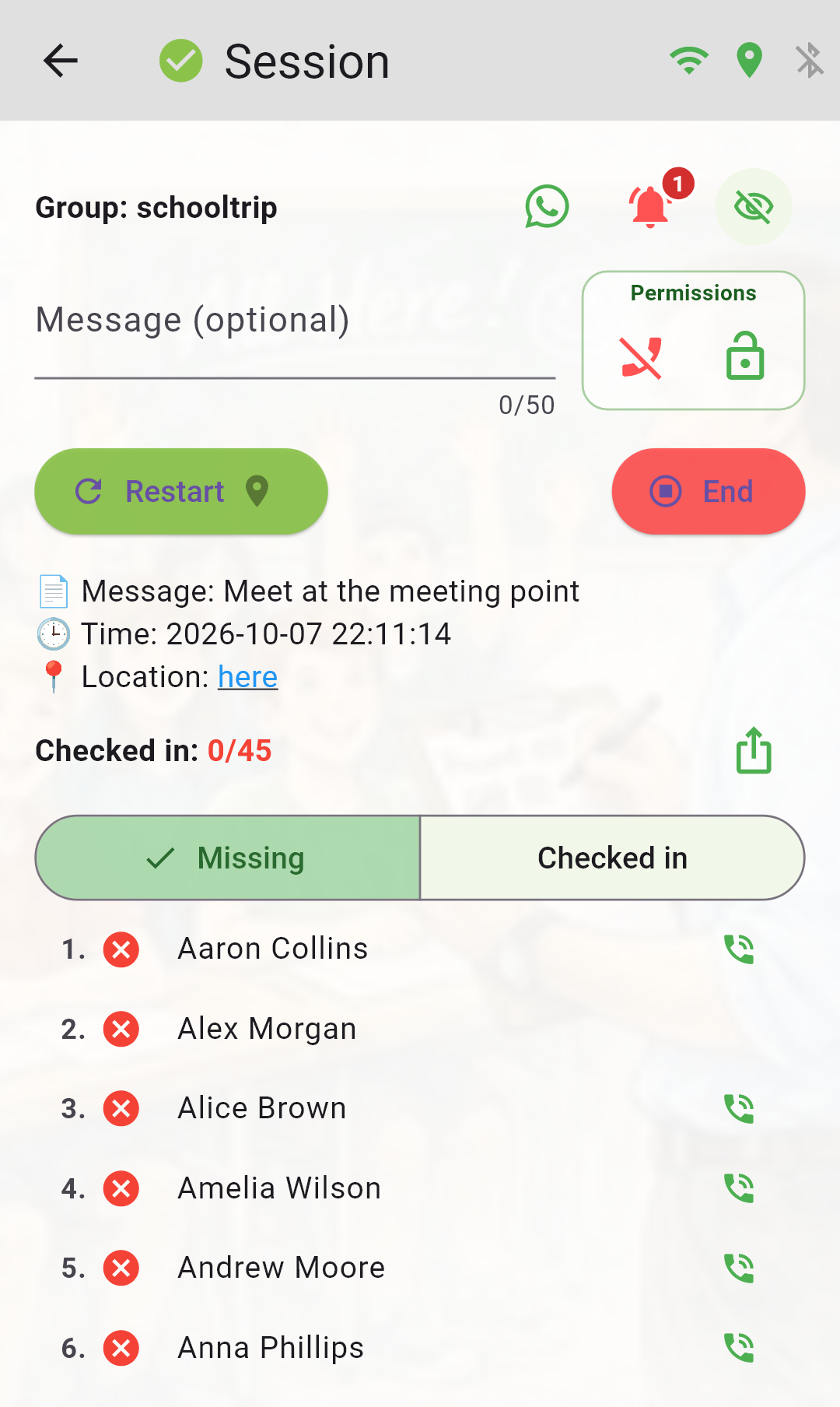
🔄 Restart session
3 Check in (Members)
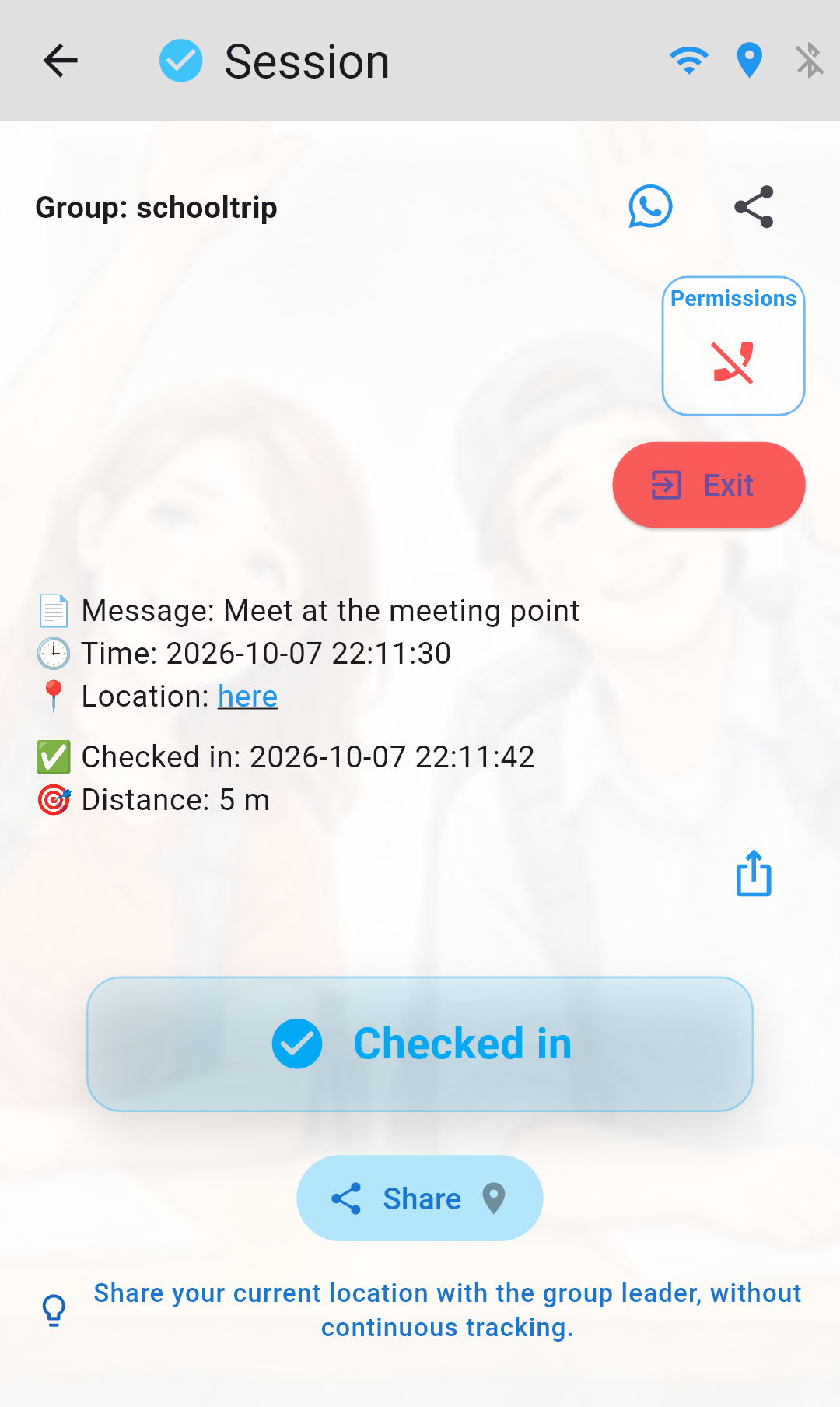
- When a session is active, members see a large check-in button.
- Tap it once to confirm you are present.
- At check-in, the member’s current location is used to calculate the distance from the meeting point — the leader sees the distance in meters, not the exact location.
- A small location icon on the check-in button indicates whether GPS signal is available at the moment of check-in.
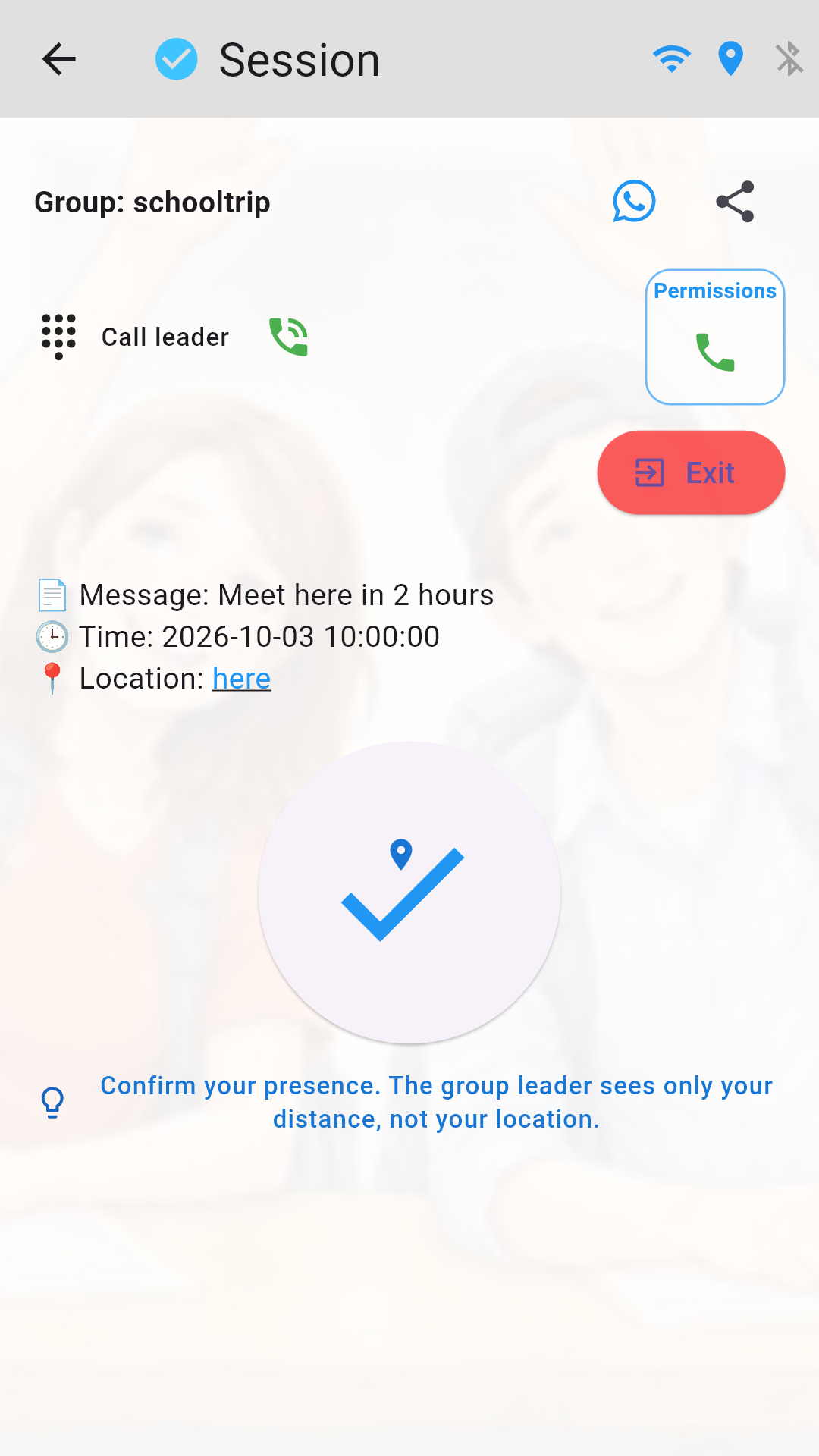
✅ Check in
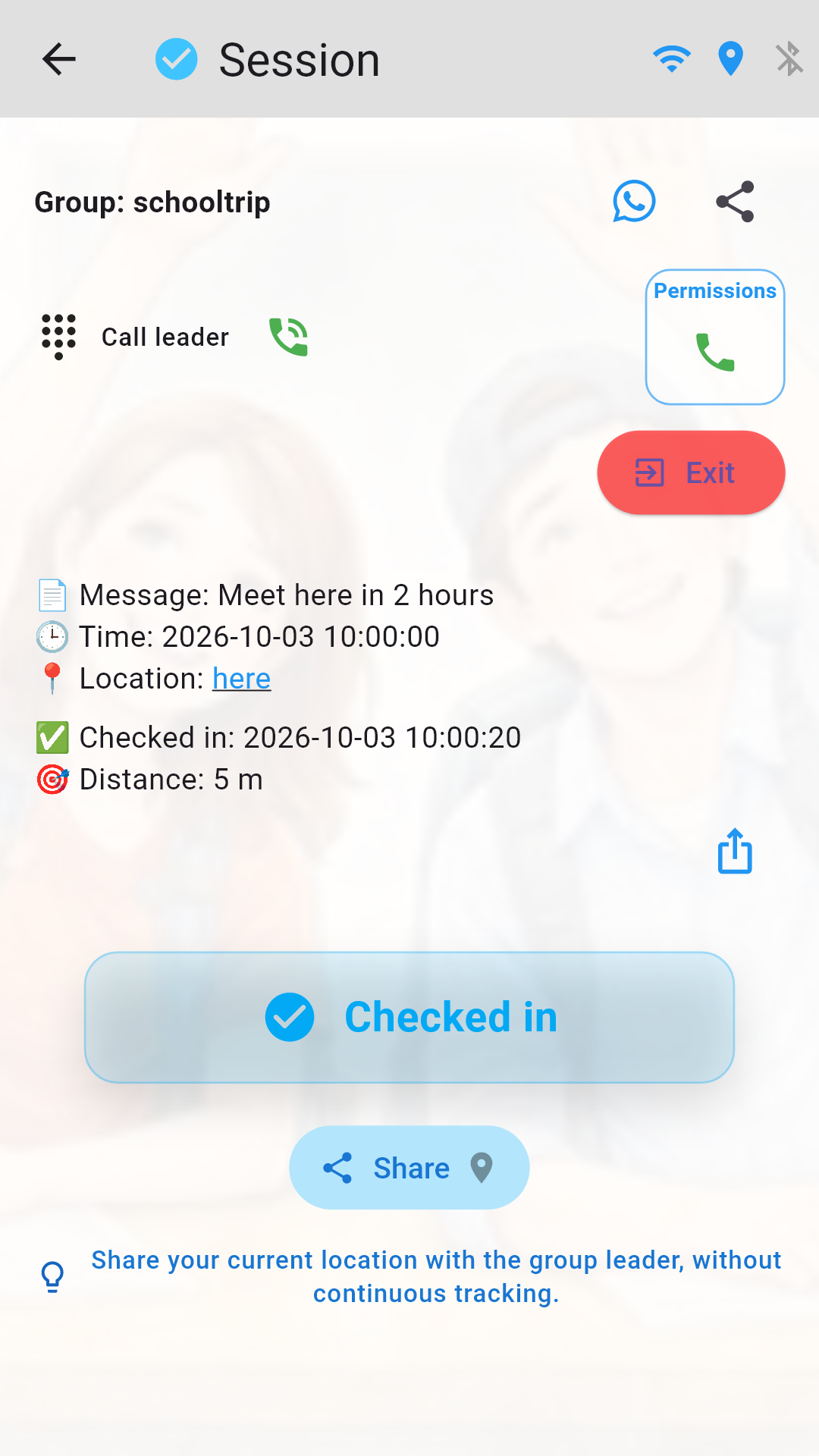
📋 Check-in details
4 Attendance overview and distance warning (Leader)
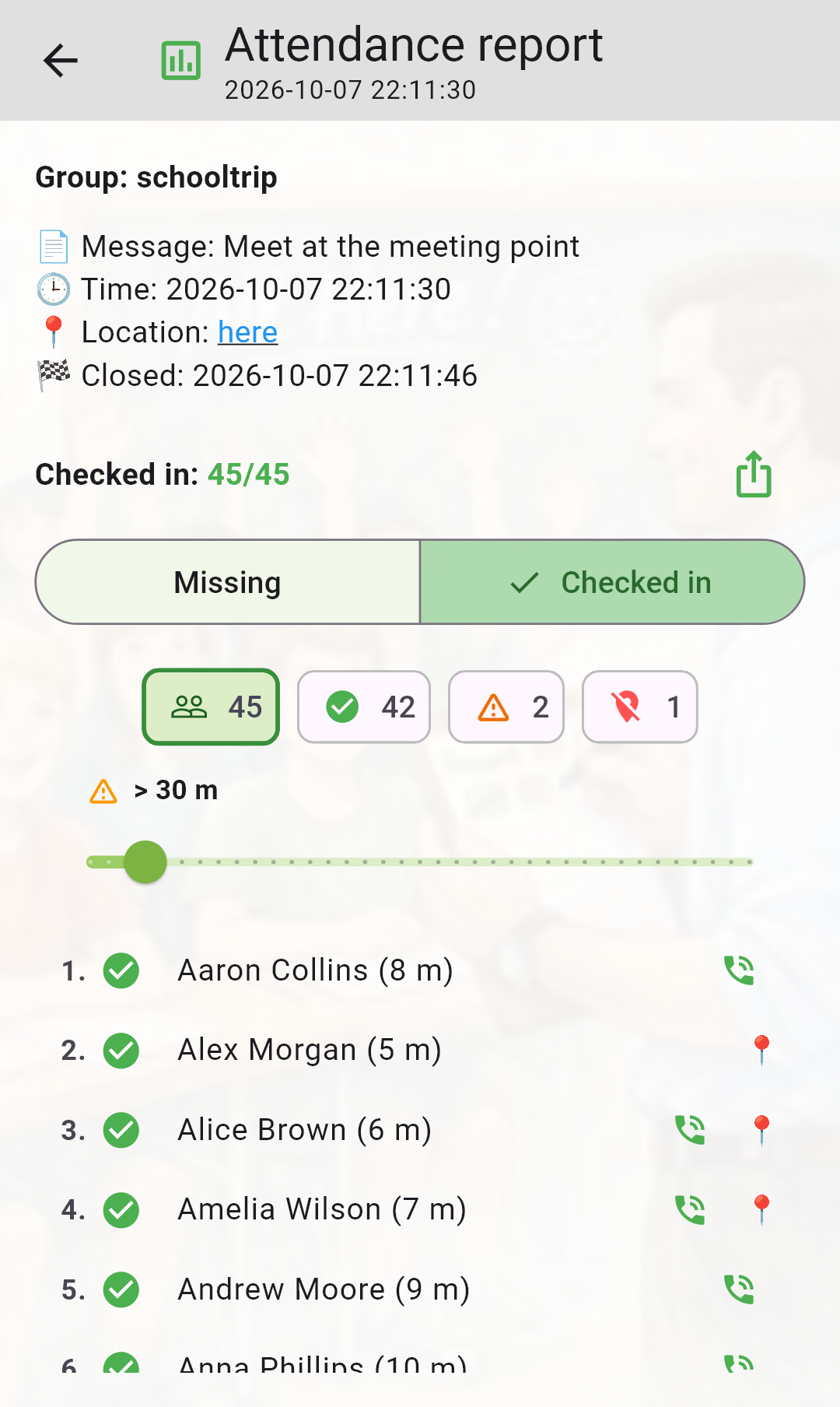
- The leader sees who has checked in and who is still missing.
- For checked-in members, the leader sees the distance (meters) from the meeting point.
- If someone is far away, the app can show a warning indicator (based on a distance threshold).
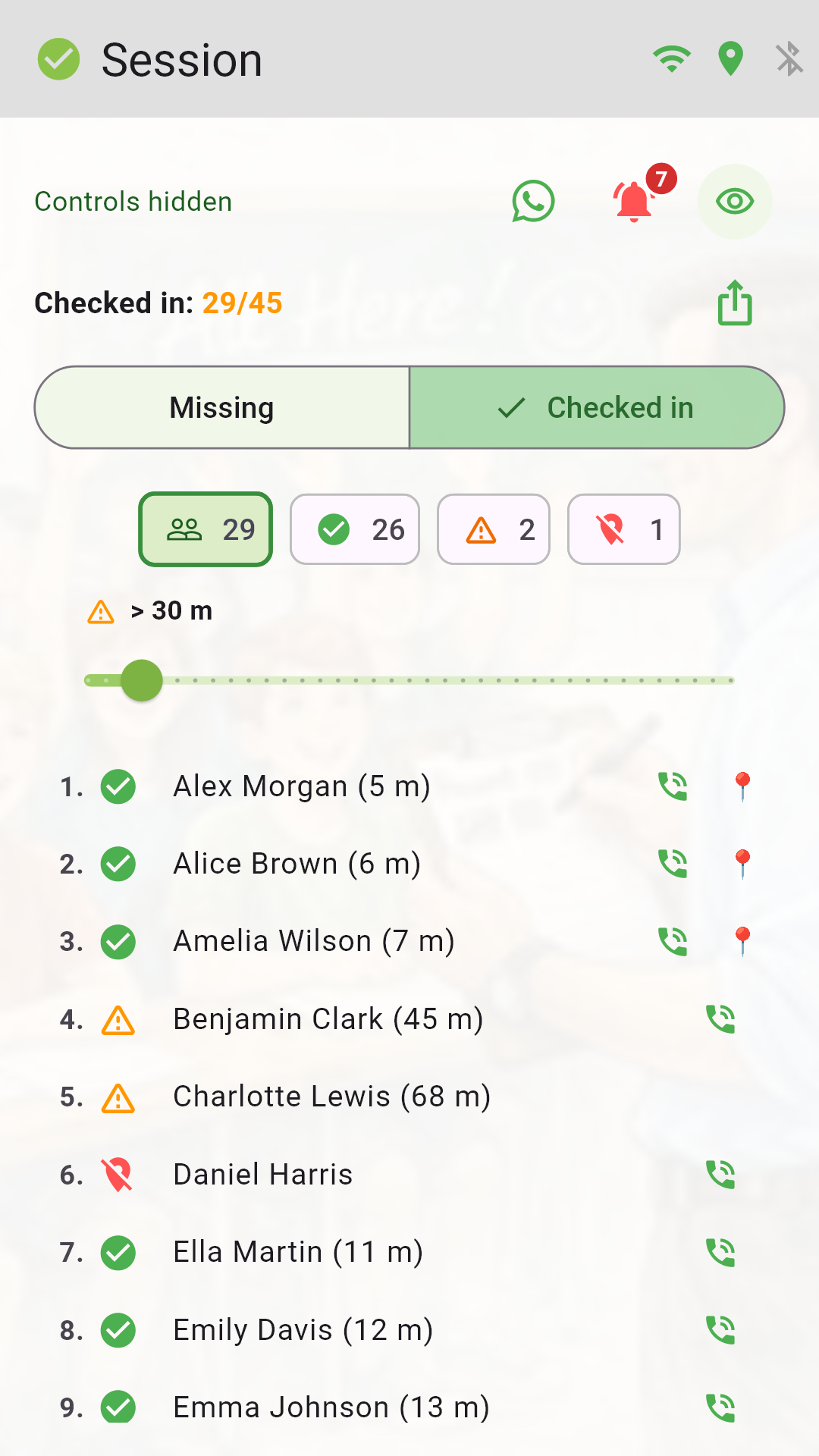
📊 Session details
5 Optional safety tools
📍 Share current location (Member → Leader)
- If you are lost, you can optionally share your current location with the leader.
- Only in this case does the leader see a Google Maps link to your exact position.
- A small location icon indicates whether GPS signal is available at the moment of sharing.
- This is not continuous background tracking — it is a user-initiated action.
📞 Secure phone sharing (Leader ↔ Member)
- Members can optionally share their phone number with the leader (within the group).
- Leaders can optionally share their phone number with members (within the group).
- Members do not see other members’ data (no names, phone numbers, or locations).
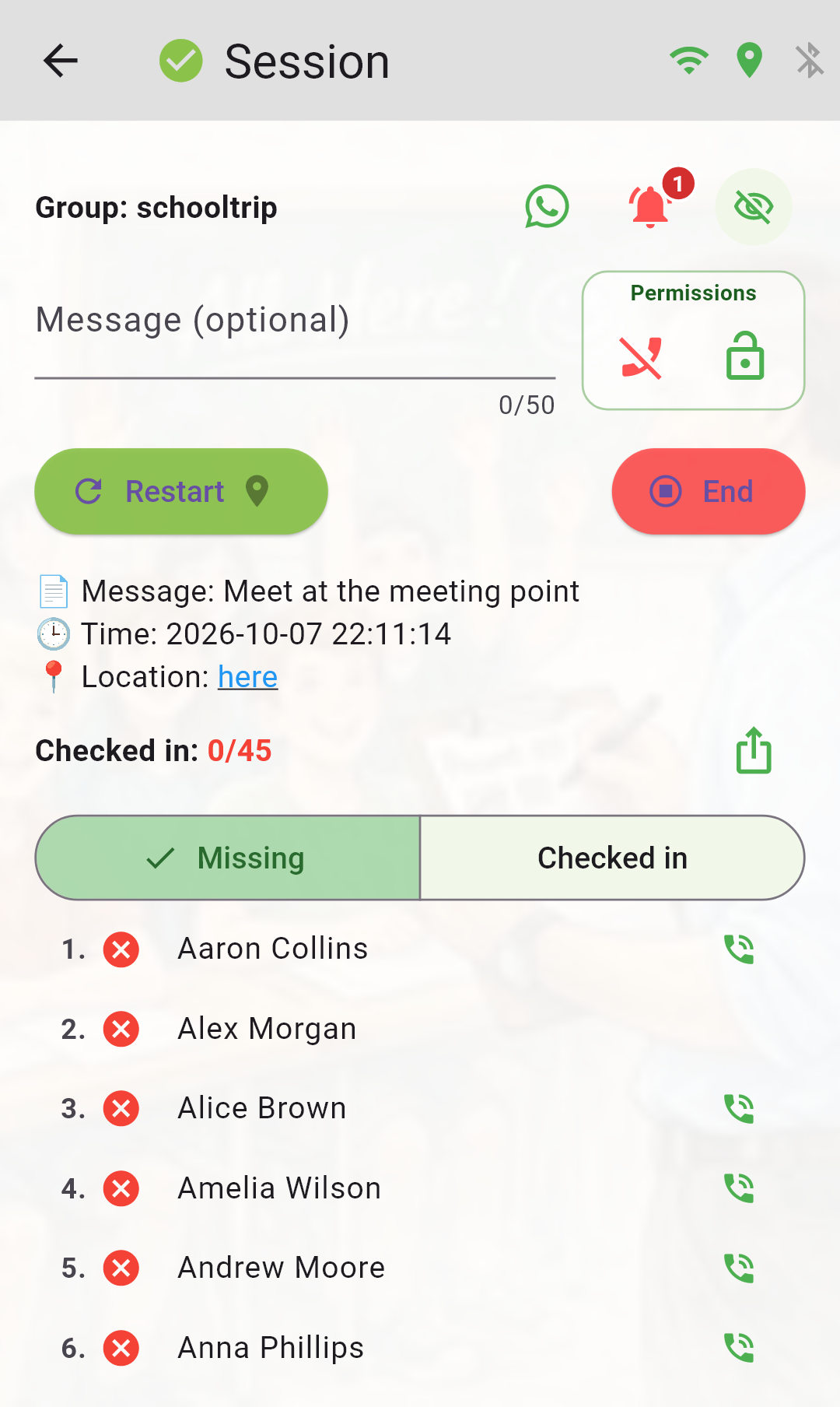
6 Export & share reports (Leader and Members)
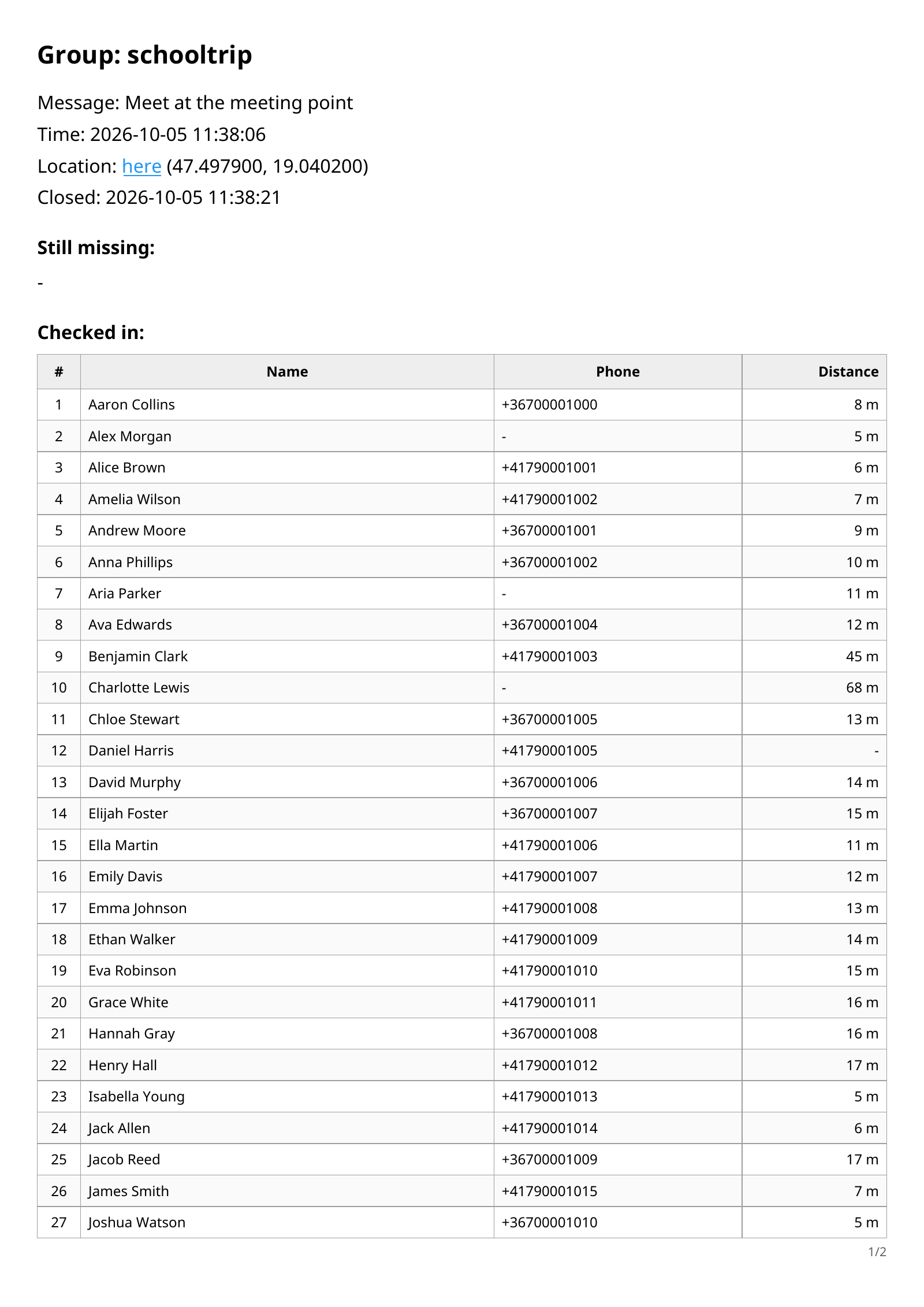
- Leader: share the member list (roster) and the check-in report as text or PDF.
- Member: after checking in, you can also share your own check-in report as an attendance proof.
- In the export settings, you can choose whether the report includes phone numbers and distance information.
📤 Export session
📄 PDF export
7 Offline check-in via Bluetooth
- The leader must stay online. Creating or first joining a group also needs internet.
- Offline check-in works on Android and iOS with up to 100 members in total; larger groups work online only.
- Stay near the leader. On both phones, enable Bluetooth, grant permissions and keep HereALL open on the group screen.
- Wait for confirmation after checking in. If it fails, move closer and retry.
- Out of range, the last known state and meeting point remain visible, but check-in is disabled. Details may be outdated.
- When internet returns, HereALL switches back online automatically.
8 Group chat link
- Leader: tap Group chat link, paste and save the link. You can edit or remove it later.
- WhatsApp, Messenger, Facebook, Telegram, Discord, Viber and Signal links get their app icon; other links get a general chat icon.
- Tap the icon to open the link in the chat app or browser.
- Chats use the external app and need internet. The icon is hidden for offline members.
FAQ
Do members see each other?
No. Members do not see other members’ names, phone numbers, or locations.
Does the leader see my exact location when I check in?
No. At check-in, the leader sees only your distance (meters) from the meeting point. The leader sees your exact location only if you explicitly share it after check-in.
Is location tracked in the background?
No. Location use is permission-based and triggered by session start / check-in / explicit location sharing actions.